


You did all the work already.
You pulled the benchmarks, grouped the line items, and tailored the numbers to your new project. Your cost model is right.
With Export to Estimate, you can turn a finished cost model into a fully structured estimate with one click, no rebuilding, and no re-entry.
It hands you a head start on the project: your groupings, your sort order, your final values, your markups, all already in place.
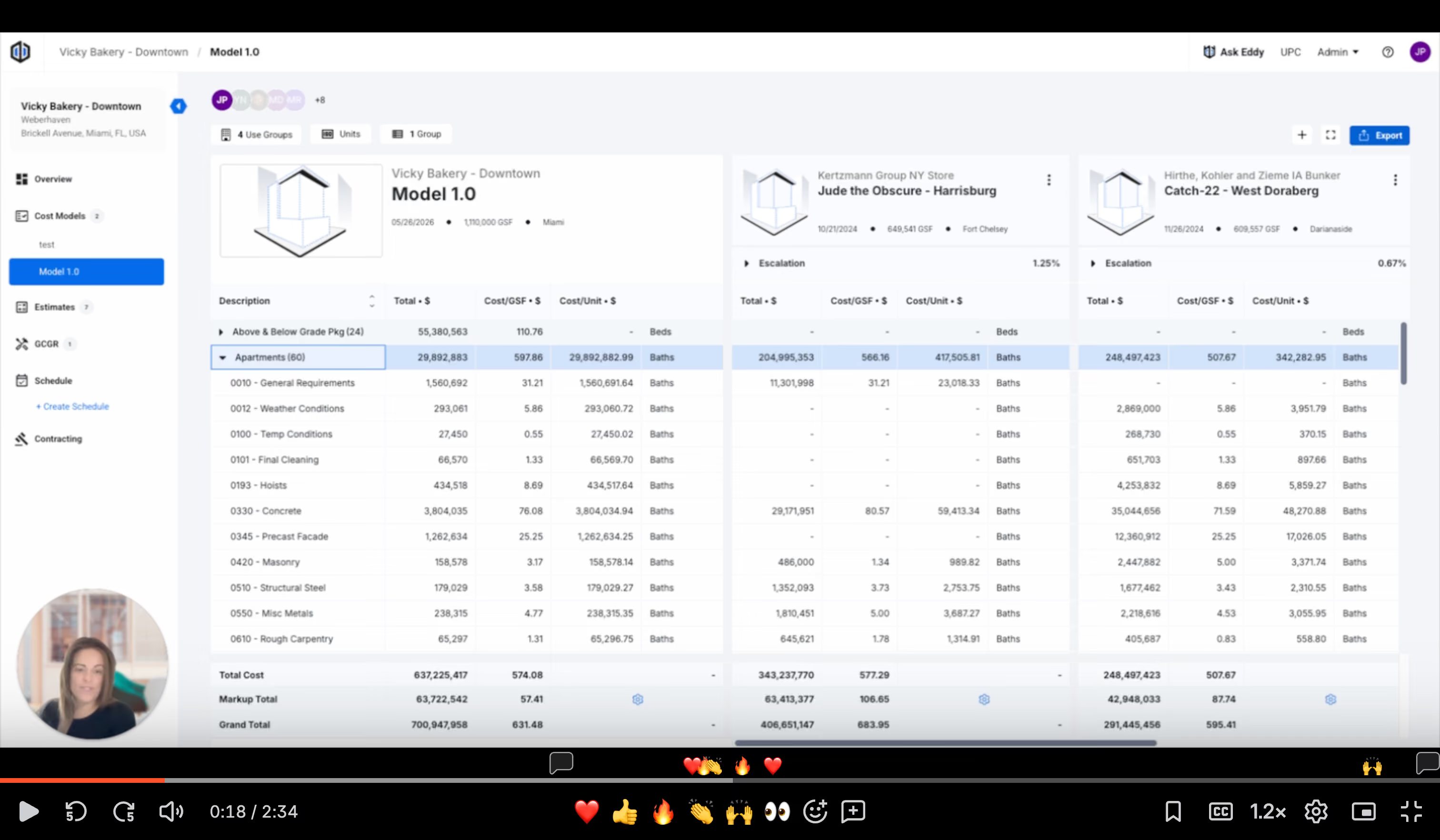
Here's a 2-minute demo video that shows you how to make your cost model into an estimate. To read about it, keep scrolling 👇
From two systems to one
Cost modeling is where you make sense of history, inspecting the benchmarks, past projects, and the judgment calls that turn a pile of historical data into a number you can build on. Estimating is where that number gets laid out in detail.
Those two things should feel like one continuous line of thinking. But, they're separated by a wall: finish the cost model, then rebuild it, line by line, inside the estimate.
We heard this from teams over and over. The thinking behind the cost model gets left behind the moment the project moves into detailed estimating.
So, we imagined a different reality.
What if the estimate didn't start from a blank page at all?
How it works
From your cost model, click Export, then Export to Estimate. Confirm a few details (you can optionally link a GCGR at this step) and select Create Estimate.
That's it? Basically.
At this point, you’re dropped into a new estimate's Detailed Summary view and it’s already grouped to the cost model you just built.
What carries over
There’s more going on here than copy-and-paste. It's a legitimate conversion that brings over every critical element of an estimate.
- Use Groups. The estimate mirrors whatever grouping was active in your cost model at export. If you'd filtered down to a subset of Use Groups, only those come through — everything else is filtered out.
- Values. Each cost model row becomes a line item in the estimate. If you overrode a value, that override is what carries over (not the benchmark average underneath it.)
- Sort order. Line items land in sequence based on the sort codes from your cost model. Anything without a sort code shows up as a blank row at the bottom.
- Markups. If your cost model has markups defined, those come with it. If not, the estimate falls back to the project's defaults.
"Cost modeling and estimating shouldn't be two disconnected islands where you redo your work crossing between them. This is one more link in telling the story of a project in one place from early cost models through estimates."
— Jeanette Popiel, Product Manager at Ediphi
The whole process is a one-time export; like a snapshot of your cost model at that one moment. If you keep working in the cost model afterward, those changes won't sync forward.
Why it matters
Every time rework happens, you end up paying for it twice; once in hours, and once at the risk that something goes wrong in the handoff.
Export to Estimate closes that seam. The thinking you did in your cost model — what's included, what's been adjusted, how it's organized — becomes the starting line for the estimating phase.
It’s a small button, ultimately, built on the same idea core to Ediphi: your project's cost data should move with you.
If you’re curious to learn more about cost modeling and estimating in Ediphi, reach out to us here.

.svg)



.svg)
.svg)